
Installation

IPTV Installation Guide

The part of setup that is the same whatever you watch on, what we send you and what each piece of it does — then the guide for your specific device.

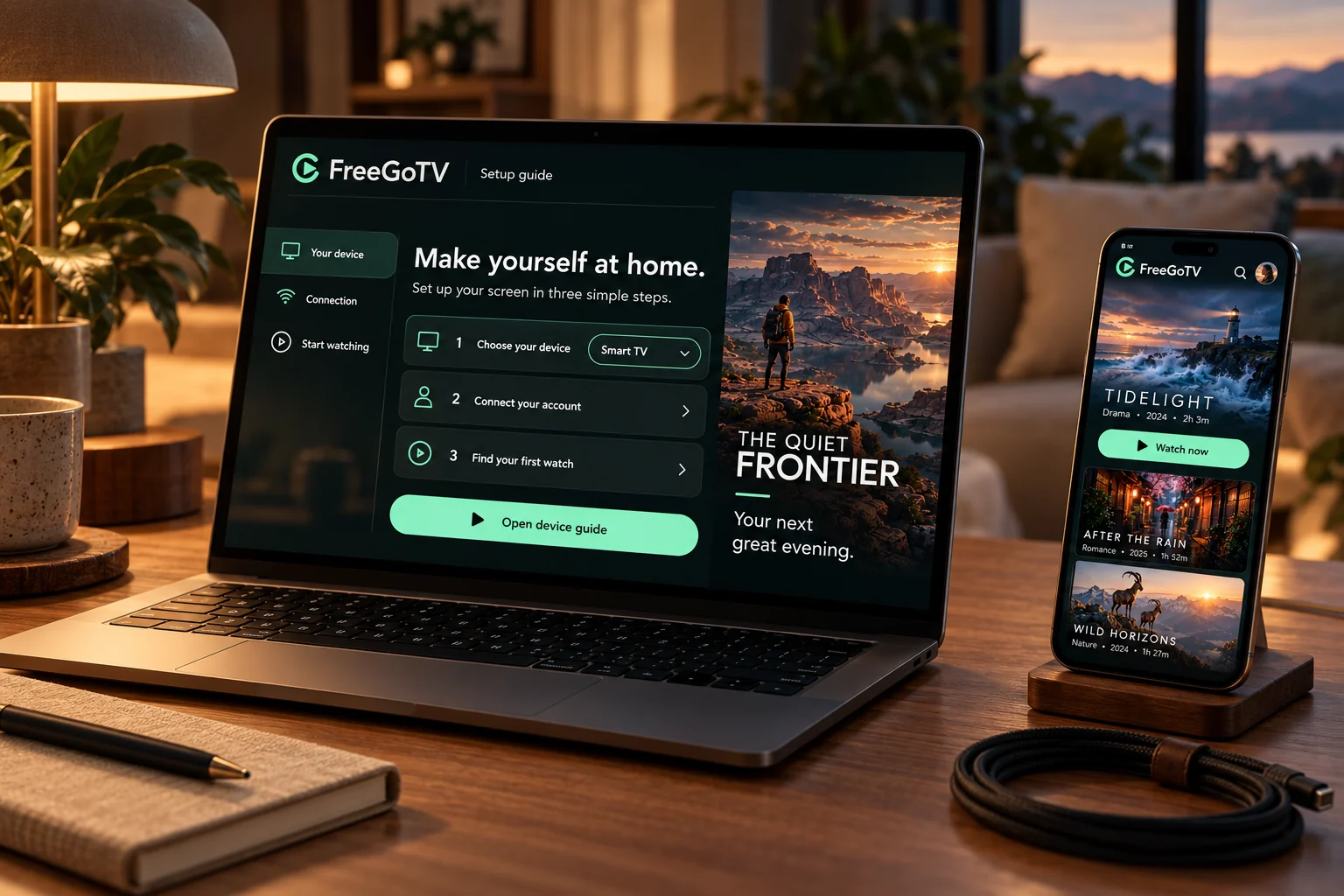
A FreeGoTV setup guide on a laptop beside a phone showing fictional film artwork.

The same four things, every time

Device guides differ in where the menus are, not in what you are doing. Underneath, every setup is the same four moves, and knowing that makes an unfamiliar device much less daunting.

  1. Install a player application on the device.
  2. Open it and choose to add a new playlist, profile or user.
  3. Enter the credentials we sent you, exactly as sent.
  4. Let the channel list and the programme guide finish loading before you judge whether it worked.

That last point causes more failed setups than anything else. A large channel list takes longer to load than people expect, and backing out of the screen halfway through leaves you with an empty list and the impression that nothing works.

Before you start

What to have ready

  • Your device connected to the internet, ideally by Ethernet rather than Wi-Fi.
  • The credentials we sent, open on your phone so you can read them while you type.
  • The account details for your device's own app store, if it will ask you to sign in.
  • Ten quiet minutes. Rushing the first load is the usual reason a setup has to be done twice.

Credentials

What we send you, and what each part is for

Login details for a player

Three separate fields: a server address, a username and a password. Most television players ask for these on their first screen. This is the format we send unless you ask otherwise.

Server: http://example-server:8080 — Username: your-username — Password: your-password

A single playlist link

One long web address ending in .m3u or containing get.php. Players that ask for a "playlist URL" or "M3U URL" want this. It carries your username and password inside it, so treat it like a password.

http://example-server:8080/get.php?username=…&password=…&type=m3u_plus

A programme guide link

A separate address, usually ending in .xml or .xml.gz, that fills in what is on now and next. Some players fetch it automatically; others have a field labelled EPG or XMLTV where you paste it.

http://example-server:8080/xmltv.php?username=…&password=…

Treat these like a password

A playlist link contains your username and password in plain text. Do not post it in a forum, a review, a public comment or a screenshot. Send it to us privately if you need help — and never send us a password for any other service.

Common problems

Problems that happen on every platform

The channel list is empty

Nearly always one of two things: a mistyped credential, or a list that was interrupted while loading. Re-enter the details character by character, paying particular attention to the port number after the colon, and let the first load finish.

The programme guide is blank

Guide data downloads separately from the channel list and can take several minutes the first time. Leave the player open, then force a guide refresh from its settings. Coverage also varies by channel — not every channel supplies listings.

Everything buffers

If it is every channel rather than one, suspect the connection or the device before the subscription. Try Ethernet, move the device closer to the router, and close anything else that is using the line heavily.

One channel will not open but the rest are fine

That points at the source rather than your setup. Send us the exact channel name and roughly when you tried it, and we will look at it.

A second device will not play at the same time

That is the connection limit working as intended. A one-connection plan plays on one device at a time. Stopping playback on the first device frees the connection for the second.

If none of that helps, tell us the device, the player and what is on screen. That is usually enough for us to answer in one reply.

Get setup help

Ready to explore FreeGoTV?

Browse the available subscription options, or contact our team for help choosing a plan and setting up your device.

Chat on WhatsApp (opens WhatsApp in a new tab)